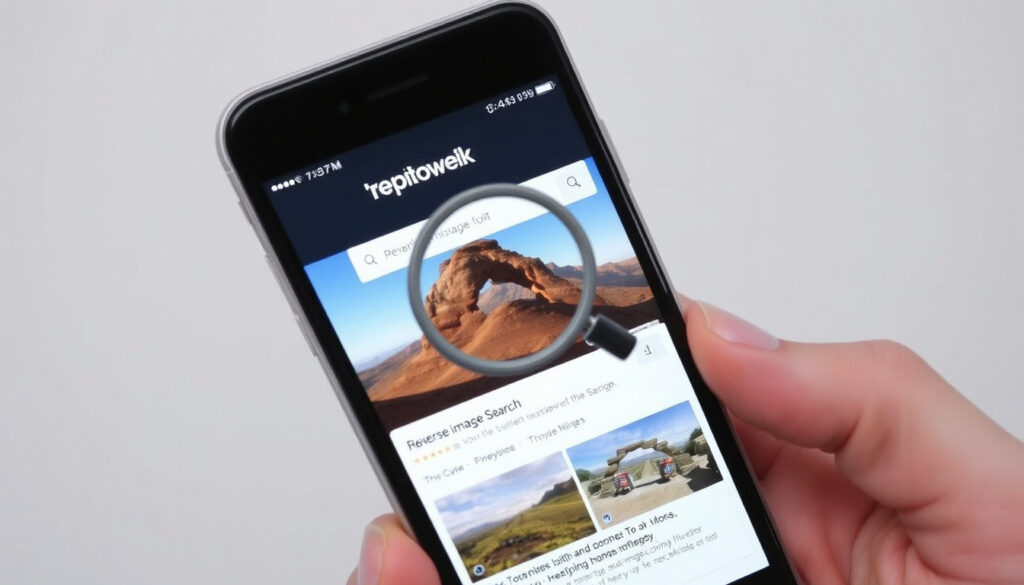
How to Reverse Image Search on Phone, iPhone, Android
You snap a photo or grab a screenshot, and now you need to know where it came from, whether it’s authentic, or if a higher-resolution version exists. That’s when reverse image search becomes your most practical trick.
Images indexed by TinEye: 84.4 billion ·
Platforms supporting Google Lens: iOS & Android ·
Desktop access: Google Lens in browser address bar
Quick snapshot
- Built-in Google Lens (Google Support)
- Works from photos, camera, screenshots (Google Support)
- No additional app required (Google Support)
- Use Safari + Google Images (Face Finder tutorial)
- Download Google Lens app (Zapier guide)
- Third-party apps like TinEye (TinEye official site)
- Visit images.google.com (PRPosting guide)
- Click camera icon to upload or paste URL (PRPosting guide)
- Also works with drag and drop (PRPosting guide)
- Privacy-focused, does not save images (TinEye official site)
- Indexes over 84.4 billion images (TinEye official site)
- Web app and mobile browser compatible (TinEye official site)
Four key facts about reverse image search are summarized in the table below.
| Fact | Detail |
|---|---|
| Definition | A search method that uses an image as the query instead of text (Zapier guide) |
| Common uses | Find original source, check authenticity, find higher resolution, identify objects (Google Support) |
| Major engines | Google Images, TinEye, Bing Visual Search (Google Support; TinEye official site) |
| Privacy | TinEye does not store images; Google may use images to improve services (TinEye official site) |
The implication: you trade index size for privacy protection depending on which engine you choose.
How do I reverse image search on my phone?
Using Google Lens on Android
- Open the Google app or Chrome, tap the Google Lens icon in the search bar (Google Support).
- Touch and hold an image on a website, then tap “Search image with Google Lens” (Google Support).
- Drag the selection corners to search a specific part of the image (Google Support).
- From search results, open the image and tap Google Lens at the bottom left (Google Support).
Using third-party apps like TinEye
- Go to tineye.com in your mobile browser and upload an image or paste a URL (Face Finder tutorial).
- No app download is required; the web interface works on any phone (TinEye official site).
On Android, Google Lens is baked into the OS, giving you one‑tap access from any app. For privacy‑conscious users, TinEye offers a no‑store alternative with its own massive index.
The pattern: Android users have the fastest path, while iPhone users need a workaround.
Can Google do a reverse image search?
Yes. Google provides reverse image search through two primary channels: Google Images (desktop and mobile web) and Google Lens (app and integrated).
How to use Google Images reverse search
- On desktop, visit images.google.com and click the camera icon to upload a file or paste an image URL (PRPosting guide).
- Drag and drop an image directly into the search box (PRPosting guide).
- On mobile, open the Google app, tap Images, then open a picture and tap the Google Lens icon (Zapier guide).
Google Lens vs. Google Images
- Google Lens analyzes the content of an image in real time (via camera or gallery), while Google Images matches the image against indexed web images (Zapier guide).
- Lens can automatically focus on the main subject of a photo; you can adjust the selection box by dragging corners (Zapier guide).
Google Images gives you a broad network search, while Lens acts like a visual assistant that can identify objects, text, and landmarks. For pure image‑source lookup, start with Google Images; for contextual analysis, turn on Lens.
What this means: Google offers two complementary tools that serve different search needs.
How to reverse image search on iPhone or iPad
Using Safari with Google Images
- Open Safari and go to images.google.com. Tap the camera icon, then choose to upload a photo from your library or paste a URL (Face Finder tutorial).
- iOS Safari does not have a built‑in reverse image option, so this workaround is the standard method (Face Finder tutorial).
Using Google Lens app
- Download the Google Lens app from the App Store. Open it and take a photo or upload from your library (Zapier guide).
- In the Google app (iOS), tap the three‑dot menu and choose “Search screen with Google Lens” to search what is on‑screen (Zapier guide).
Using third-party apps
- Install TinEye’s mobile web interface or use browser extensions. TinEye does not require an app—just visit tineye.com (TinEye official site).
The implication: iPhone users have fewer native options, but the same search power is accessible through Safari and the Google Lens app. The extra step of saving an image first is the main friction point.
How do you reverse image search by photo?
Search using a saved photo
- On any device, open Google Images or TinEye, click the camera icon, and select an image from your gallery or camera roll (PRPosting guide; TinEye official site).
Search using a screenshot
- Screenshots work the same as regular photos. Take a screenshot, then upload it to Google Images or Lens (Google Support).
Search using a URL
- Copy the image address from a web page, paste it into the camera‑icon field on images.google.com or tineye.com, and search (PRPosting guide).
The pattern: all methods hinge on uploading the image file or its web address. No special software is needed; every browser and device can perform this step.
What is reverse image search and how does it work?
How reverse image search technology works
- Reverse image search uses computer vision algorithms to extract features (colors, shapes, textures) from an image and match them against an indexed database (Zapier guide).
- The engine returns all web pages where that image appears, along with visually similar images (Zapier guide).
Common uses: find source, authenticity, higher resolution
- Verify the origin of a photo (e.g., a meme or news image) (Google Support).
- Discover higher‑resolution versions of an image (Google Support).
- Identify objects, landmarks, or text in a photograph (Zapier guide).
The catch: the quality of results depends on the size of the engine’s index. Google holds the largest web‑image index, while TinEye is the largest dedicated reverse search index with 84.4 billion images.
What’s clear and what’s not
Confirmed facts
- TinEye indexes over 84.4 billion images (TinEye official site)
- Google Lens is available on iOS and Android (Google Support)
- Google Images supports upload, paste URL, and drag‑and‑drop (PRPosting guide)
What’s unclear
- Exact number of images indexed by Google
- Which reverse image search tool is most privacy‑friendly for all use cases
- Whether all browsers support the camera icon upload method on mobile
Perspectives from the experts
At the bottom left, tap Google Lens or touch and hold the image and select Search image with Google Lens.
Google Support official Android documentation
Google Lens can automatically focus on the main subject of an image, and you can tap or drag the selection corners to change the focus.
Zapier productivity guide
For anyone juggling multiple photos a day, the choice between Google and TinEye comes down to reach versus privacy. Google’s massive index and Lens integration are convenient, but TinEye’s no‑store policy offers a clean alternative. Whichever route you take, reverse image search puts the power of the entire web’s image library at your fingertips.
For a more comprehensive walkthrough, check out this detailed guide on reverse image search that covers all major platforms.
Frequently asked questions
Is reverse image search free?
Yes, both Google Images and TinEye are free to use. There are no hidden charges for uploading images or viewing results.
Can I reverse image search on a computer?
Absolutely. Visit images.google.com or tineye.com on any desktop browser. You can upload, paste a URL, or drag and drop an image.
What is the best reverse image search tool?
The best depends on your need: Google Images has the largest index; TinEye is better for privacy and finds exact matches quickly.
Does reverse image search work on videos?
Not natively. You must take a screenshot of a video frame and search that still image.
How accurate is reverse image search?
Accuracy is high for exact matches and visually similar images, but results can vary for heavily edited or low‑resolution photos.
Can I reverse image search without an app?
Yes. All major tools work in a mobile or desktop browser without installing anything.
Does Google reverse image search save my images?
Google may use uploaded images to improve its services. TinEye explicitly states it does not store images after search.
How to reverse image search on a Samsung phone?
Use the built‑in Google Lens: long‑press an image or open the Google app and tap the Lens icon. The process is the same as on any Android device.
For those who regularly trace images on an Android phone, the direct Lens integration is the fastest path. iPhone users will need the Safari workaround or the Lens app. The choice is clear: stick with Google for breadth, switch to TinEye when privacy matters more.
More related posts
 When We Were Young Festival – Dates Lineup Tickets and History
 Racket Rivals Codes – Active Verified List March 2026
 Pi Network Price – Current Value, Mainnet Status and Predictions
 Don’t Breathe 2 – Plot, Cast, Reviews and Sequel Guide
 Clima para Amanhã – São Paulo 19-27°C Mostly Dry
 Oz Lotto Winner $20 Million: Stories & Key Advice
 Percy Hyne White Movie and TV Show : Career & Controver y
 Cast of Black Panther (Film) – Full List and Characters
